
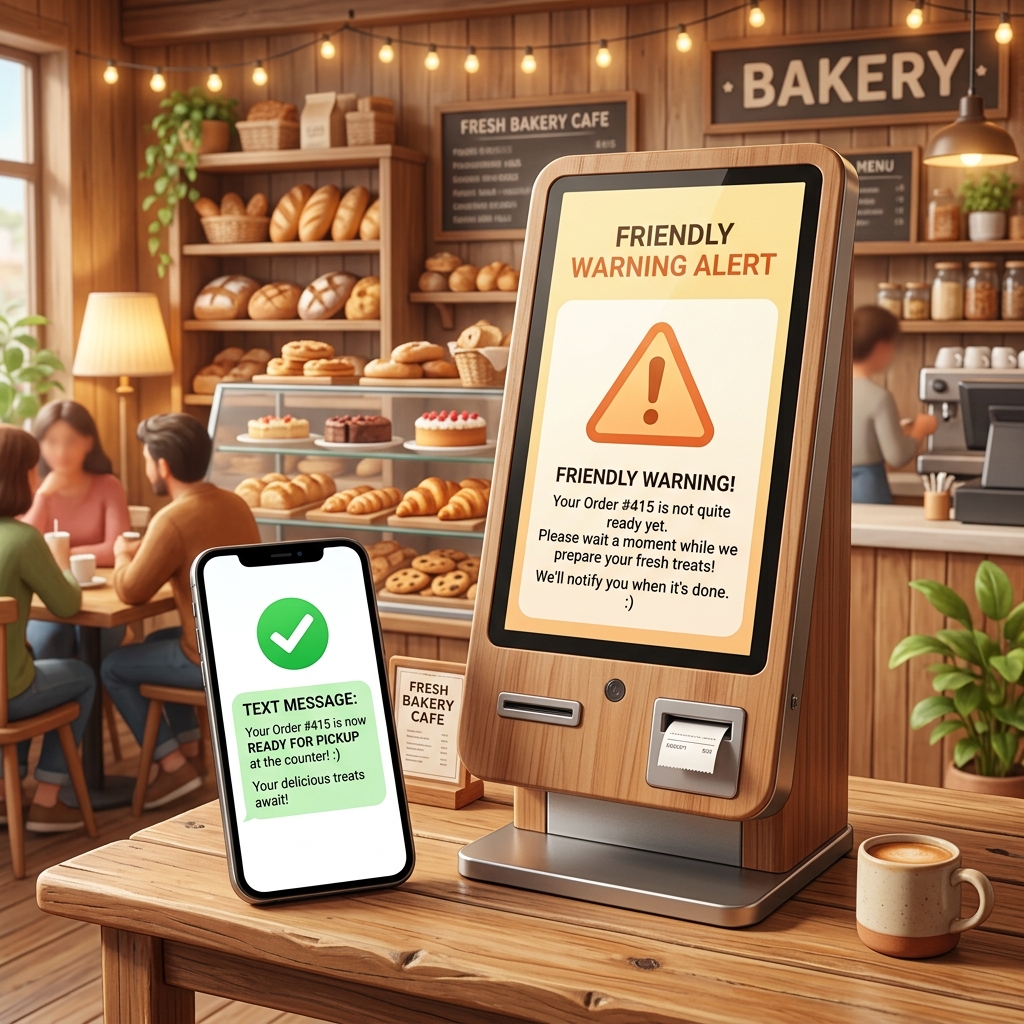
Smart Store Management: How to Share Kiosk & Delivery Terminal Error SMS in Real-Time
These days, you can easily find unattended stores on every corner—such as unmanned cafes, study cafes, unmanned convenience stores, or self-service laundromats. The fact that the owner does not have to stay in the store all day is the biggest attraction and advantage of unmanned stores.
However, when you are away from the store, doing other business, or resting at home late at night, there is one thing that makes store owners most anxious. It is "kiosk or payment terminal failure."
If a payment terminal stops or a kiosk goes down in an unattended store, the store is immediately paralyzed. Customers leave because they cannot make payments, which directly leads to a sales hit.
Usually, these terminal errors or delivery app order omission notification texts are sent to the store management Android phone or the owner's personal cell phone. However, if the owner cannot check the text message in time, the disaster response time becomes indefinitely long.
There is a way to prevent this stressful situation and deal with it smartly. It is to build a system that automatically forwards terminal error texts to a chat room where all employees and partners gather in real-time by combining the SMS Forwarder app with work messenger webhooks.
1. Why Automatic Terminal Error Forwarding is Crucial for Unattended Stores
In unattended stores, even a 1 to 2-hour system paralysis can deal a fatal blow to the day's sales. The reasons for introducing an automatic error forwarding system are clear.
① Sales Defense through Real-Time Response
Most issues, such as a kiosk running out of paper and failing to print, or a temporary network error of the payment gateway (PG) causing a payment failure, can be resolved with simple actions within 5 minutes.
However, if you find out about the error an hour later, you will miss dozens of customers who visited the store during that time. If the notification text is shared immediately with partners or working employees nearby, they can visit the store and resolve the issue as quickly as possible.
② Ensuring Peace of Mind for Solo Owners
Even a solo store owner who runs a store alone without partners cannot live looking at only phone text alerts all day long.
By utilizing the SMS Forwarder app, you can pick out only urgent error texts and spray them simultaneously to a messenger channel with loud notification sounds or a family chat room.
Even while the owner is driving or sleeping, surrounding partners can check the message, take action instead, or wake up the owner to respond quickly.
"The core of unattended store management is not 'the absence of people,' but 'whether a backup system is in place to respond quickly when problems occur.'"
2. How Real-Time Error Message Sharing Works
This system utilizes an Android second phone (or store management smartphone) placed constantly in the store as a repeater.

- The kiosk management company or delivery app (Baemin, Yogiyo, etc.) system sends an error/failure notification text to the store phone.
- The SMS Forwarder app installed on the store phone detects the received text in real-time.
- According to the filter rules set in the app, it analyzes the sender's number and specific words in the body (e.g.,
"error","failure","unpaid","sold out"). - By filtering only urgent texts that match the conditions, it immediately sends the message content to the Webhook URL of the Slack or Discord chat room where all employees participate via the internet.
Since it uses the internet messenger network, messages are shared simultaneously in just 1 second regardless of how many recipients there are, and there is no text sending cost even if you send unlimited messages.
3. Step-by-Step Configuration Guide
Here is a concrete configuration guide that anyone can easily set up in 5 minutes.
Step 1: Get Messenger Webhook URL
First, you need a unique address (Webhook URL) of the messenger chat room to receive texts. Please refer to the previous post, New Webhook Integration Update and Setup Method guide, to generate and copy the Slack or Discord Webhook URL in advance.
Step 2: Install SMS Forwarder App and Grant Permissions
- Download and install the SMS Forwarder app on the Android smartphone to be used in the store.
- Run the app and allow both SMS Read/Send permissions and Notification Access permission so that the app can read received texts and forward them externally.
Step 3: Configure Filter Rules for Error Texts
Now, configure the filter rules to pick out only specific error texts and send them to the messenger.
- Press the Plus (+) button at the bottom right of the app's main screen to enter the new filter addition screen.
- Filter Name: Enter a name that is easy for you to identify (e.g., "Kiosk Error Forwarding", "Delivery Order Omission").
- Configure Conditions:
- Specify Sender Number: Register the official representative number from which texts come from the payment gateway or delivery app.
- Specify Keywords: Register words like
"error","failure","sold out","failed","cancel", or"network"in the keyword field so that it triggers only when these words are included in the body.
- Configure Target: Check "Webhook Transfer" instead of the general phone number input field, and paste the Slack or Discord Webhook URL copied in Step 1.
- Save and Test: Save and run a test transfer to check if the notification instantly arrives in your messenger channel, and then activate the filter.
Step 4: Exclude Battery Optimization (Mandatory)
If the store smartphone does not move for a long time in the background standby state, the operating system may put the SMS Forwarder app to sleep. To ensure real-time transmission without omission, you must change the smartphone settings.
- Turn on the [Settings] app of the smartphone.
- Find the [SMS Forwarder] app in the [Apps] menu.
- Tap [Battery] on the app info screen.
- Change the setting to [Unrestricted] instead of the default 'Optimized' option.
4. Real-World Effects and Operation Tips
Actually, many unmanned study cafes and unmanned convenience store owners are seeing great effects through this method.
- Work Sharing with Partners: In a couple or partner relationship, if you set up a webhook in a chat room, the partner who lives nearby or can move immediately from outside can check the text first and head to the store, respecting each other's rest time.
- Staff Training: When there are part-time employees working on weekends or nights, the kiosk error situation is shared transparently in the chat room, so the employee can report and take action first before the owner instructs.
- Zero Cost Sharing: Forwarding to multiple people via SMS accumulates telecom carrier fees, but sharing via webhooks has zero cost worries no matter how many employees you share the chat room with.
In error response, speed is money. Utilize the webhook feature of the SMS Forwarder app to monitor your unattended store with peace of mind anytime, anywhere, and defend your sales perfectly!
Download SMS Forwarder
Download now and build your own auto-forwarding rules in a minute.
Install Free on Google Play