

Complete Guide to SMS Auto-Forwarding App: From Family Card Sharing to SMB Sales Notifications
In your busy daily life or hectic store operations, you may have faced trouble more than once because of various text messages received only on a single smartphone.
Typical examples include when a double-income couple wants to share credit card payment messages in real-time, when co-founders or store staff need to check bank deposit/withdrawal alerts at the same time, or when you want to collect identity verification codes received on a second phone or corporate phone to your main smartphone.
With the SMS Forwarder app, you can automatically forward SMS to any destination you want in just one minute simply by installing it on your Android smartphone, without complicated server development or subscribing to expensive telecom value-added services.
In this guide, we will introduce practical ways to utilize auto-forwarding and concrete setup tips that individuals and small business owners can immediately apply to their daily lives and businesses.
1. Practical Use Cases for Families and Small Businesses
Let's look at three typical examples of why automatic smartphone text message forwarding is necessary and how it changes our daily lives and businesses to be more convenient.
① Rational Household Budget Management for Double-Income Couples (Family Card Sharing)
For most credit cards, payment notification messages are sent only to the phone number of the cardholder. For this reason, every time a spouse uses the card, it is inconvenient to ask how much they spent and where, or to take a screenshot and send it.
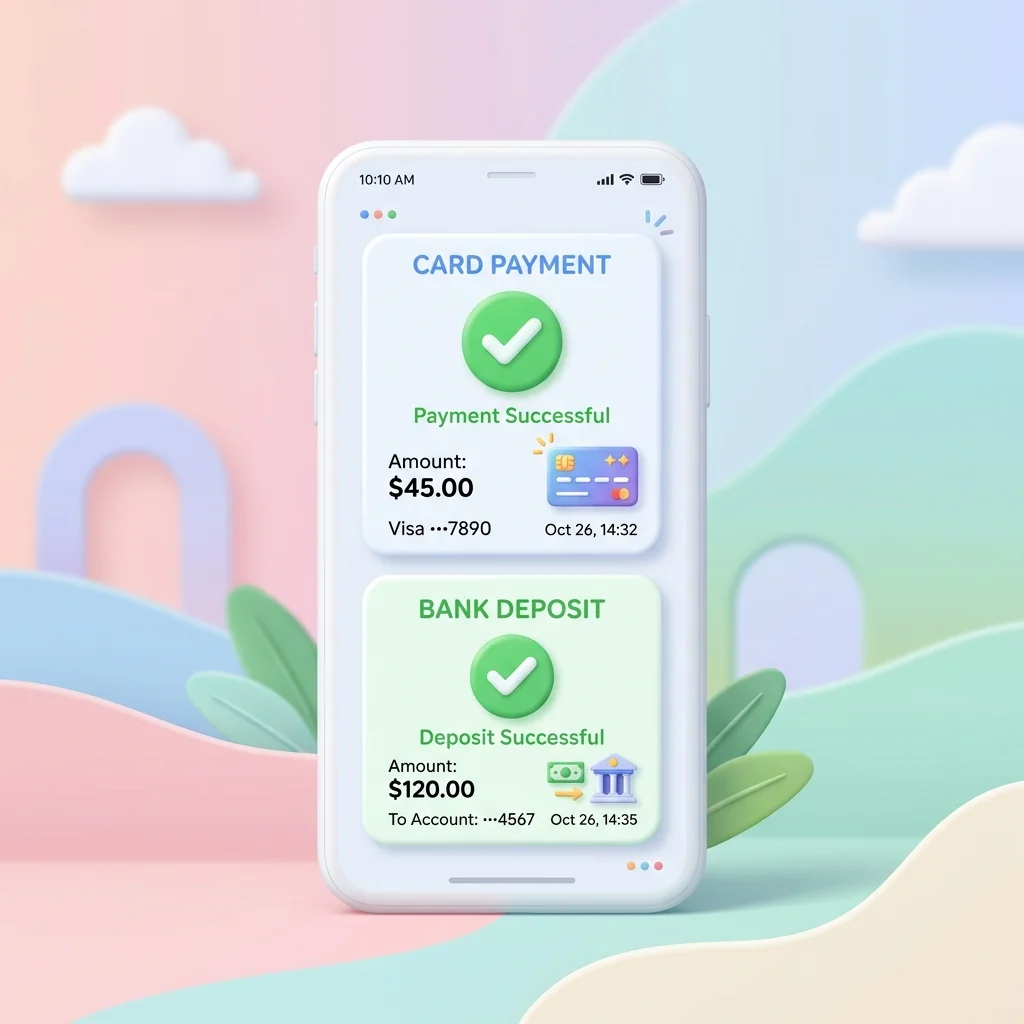
If you register the credit card company's outgoing number or keywords like 'card' or 'payment' as filters in the SMS Forwarder app, the transaction message is automatically forwarded to your spouse's smartphone as soon as it is received.
This allows couples to co-monitor and manage shared living expenses transparently in real-time.
"Credit card payment notification texts are sent only to the phone number of the cardholder. However, the payment is ultimately deducted from the couple's shared assets. Therefore, sharing transaction history transparently in real-time is not just a simple convenience, but the first step toward wise and rational joint household management."
② Sharing Real-time Sales Alerts Between Small Business Partners and Staff
For small shops like cafes, restaurants, and craft workshops operated jointly or with employees, situations often occur where bank deposit/withdrawal or simple payment alerts are sent only to the business owner's personal phone.
This is because employees cannot check the deposit status in time, leading to delayed services, or they have to call the busy business owner every time to check.
These issues can be cleanly solved by installing the SMS Forwarder app on a store Android phone or second phone and setting it up to forward bank and payment gateway messages (e.g., 'deposit completed', 'payment approved') to partners or employees' numbers at the same time.
③ Collecting Verification Texts from Corporate/Second Phones (2FA Automation)
Many people carry a separate phone for business purposes under a corporate name or carry a second personal phone. It is very annoying to find the second phone and check the verification code every time you log into a website or make a financial transaction.
Try installing the SMS Forwarder app on your second phone and setting it to automatically forward messages containing words like 'verification', 'auth', or 'verification code' to your main smartphone.
You don't have to take out two smartphones from your pocket or bag every time, and you can quickly finish all authentication processes with just one main smartphone.
2. Installing the SMS Forwarder App and Configuring Filter Rules
The core principle of the SMS Forwarder app is to filter only messages that match specific rules (filters) set by the user from among the received text messages, and automatically resend them to the designated destination.
Even those unfamiliar with smartphone operations can complete the settings within 3 minutes by following the steps below.
Step 1: Download App and Allow Permissions
- Download App: Open Google Play Store on your Android smartphone, search for 'SMS Forwarder', and download and install the app.
- Allow Required Permissions: When you run the app for the first time, several permission approval windows will appear. You must allow SMS Read/Send permissions and Notification Access permission for the app to detect incoming texts and forward them normally.
Step 2: Add Auto-Forwarding Rules (Filters)
- Tap the Plus (+) or "Add" button located at the bottom right of the main screen of the app.
- Write Filter Name: Enter a name that is easy for you to recognize (e.g., "Card Expense Sharing", "Bank Deposit Text").
- Configure Conditions: Choose when to forward.
- Specify Outgoing Number: Useful when you want to forward texts only from a specific credit card company's representative number or a specific person's number.
- Specify Keywords: Triggers only when a specific word is included in the body. For example, if you want to share only deposit and withdrawal alerts, register keywords like
'deposit','withdrawal', or'approved'in the keyword field, separated by commas or line breaks.
- Enter Forwarding Destination: Enter the phone number of the recipient who will receive the texts in real-time. If you want to send to multiple people at the same time, you can add them by putting a separator (comma, etc.) between numbers.
- Save and Activate: Save the settings and verify that the corresponding filter switch is in the [On] state.
3. Battery Optimization and Background Execution Tips for Stable Service
The Android operating system (OS) features a powerful battery optimization function that automatically puts apps that haven't been used for a long time into sleep mode or forces them to close to save smartphone battery.
If the SMS Forwarder app becomes subject to sleep mode, it may not run immediately in the background even if text messages are received, causing forwarding to be omitted or delayed. To prevent this, you must change the smartphone settings.
Standard Configuration for Samsung Galaxy Smartphones
- Run the [Settings] app of your smartphone.
- Enter the [Apps] menu and find and select the [SMS Forwarder] app from the list.
- Tap [Battery] on the app info screen.
- Select [Unrestricted] instead of the default 'Optimized' option.
Applying this setting ensures that the operating system does not force the SMS Forwarder app to close in the background, keeping it always running in standby mode.
4. Frequently Asked Questions (FAQ)
Q. How are sending fees charged for auto-forwarded text messages?
A. The SMS Forwarder app does not use its own server, but directly resends messages using the telecom carrier line of the USIM installed in the user's smartphone.
Therefore, text sending fees are charged according to the plan of the device sending the text. If you are using an unlimited text plan, you can use it for free without worrying about fees.
For general small business owners, it is deducted from the basic text quota provided by the plan, minimizing the cost burden.
Q. Do texts get forwarded even if the internet connection (Wi-Fi or mobile data) is disconnected?
A. Basically, the process of receiving texts and forwarding them back to normal SMS is processed based on the mobile network of the telecom carrier, so it works even if the internet is disconnected.
However, if you utilize the Webhook feature introduced in the next post to connect to messenger services like Slack or Discord, the smartphone must be connected to the internet via cellular data or Wi-Fi.
Furthermore, if you want to save SMS sending fees or transparently share sales alerts with multiple employees and partners at once, we highly recommend using the Webhook integration feature.
Learn how to receive real-time notifications to your Slack or Discord channels without KakaoTalk or text fees for free and unlimitedly in the next post: New Webhook Integration Update and Setup Method.
Download SMS Forwarder
Download now and build your own auto-forwarding rules in a minute.
Install Free on Google Play