
How to Automatically Forward Delivery & Reservation SMS to Staff and Kitchen Teams
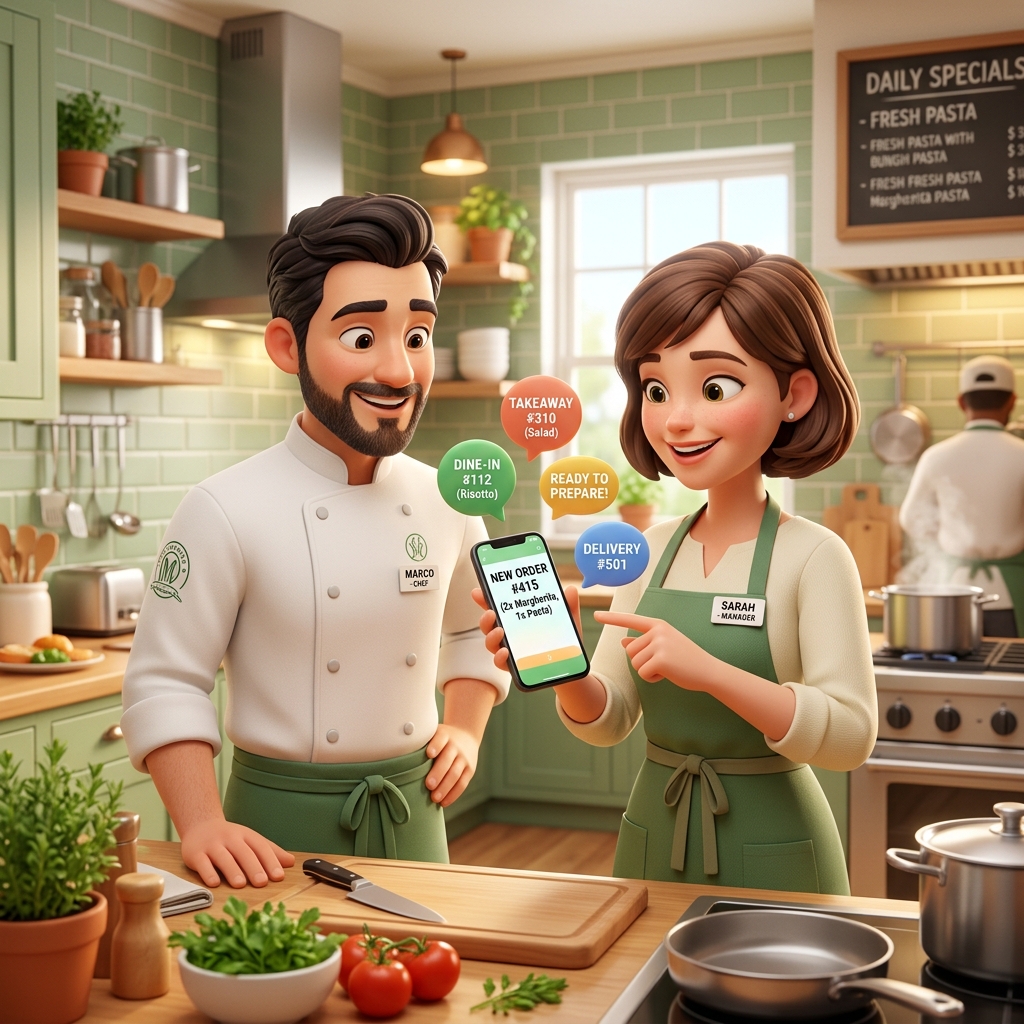
Managing a busy restaurant, cafe, or retail shop means juggling incoming orders from multiple delivery apps, online reservation platforms, and customer SMS inquiries. During peak hours, store managers and owners rarely have the luxury of standing next to the counter tablet or dedicated store smartphone to read every incoming alert.
When order confirmation texts or reservation cancellation messages sit unread on a single counter phone, it leads to delayed food preparation, unhappy waiting customers, and lost revenue.
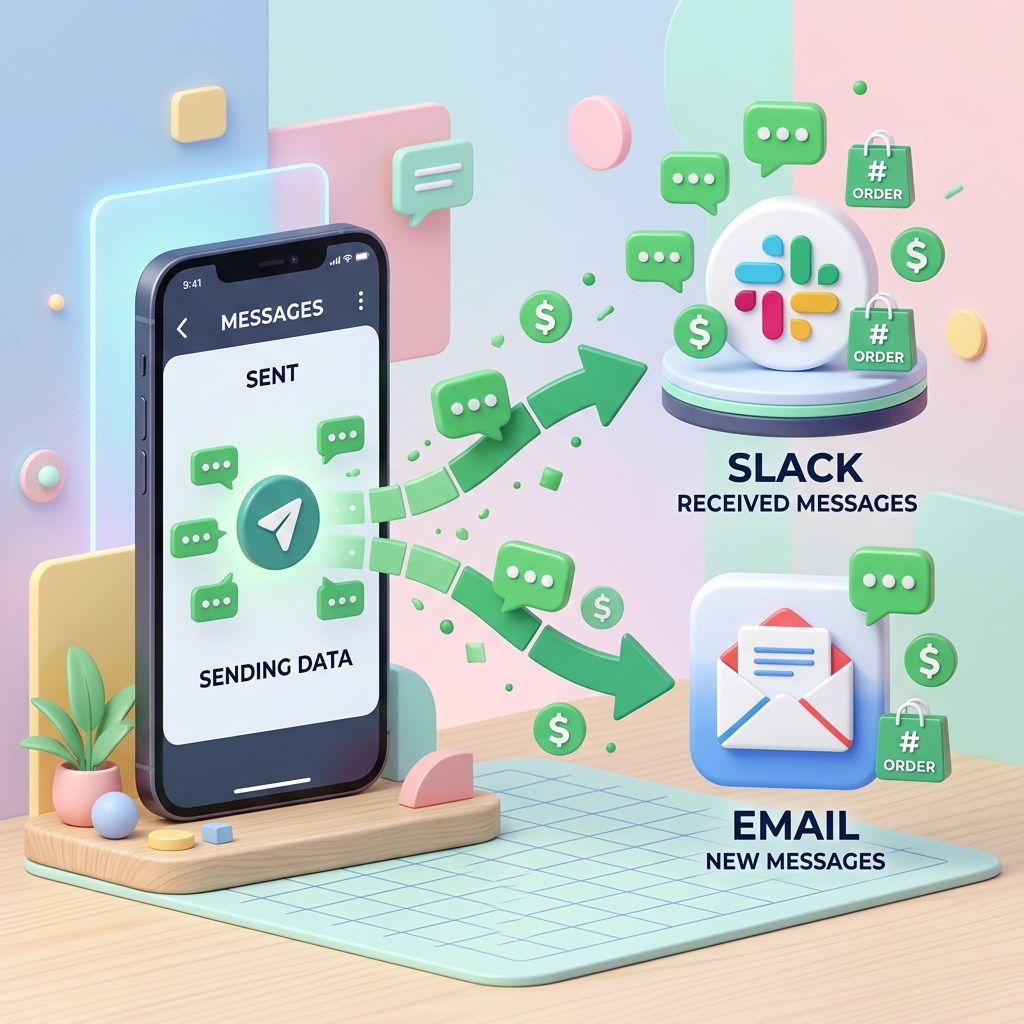
Instead of shouting order updates across a noisy kitchen or constantly running back to the counter, you can set up a seamless system that automatically forwards store text messages directly to your staff's smartphones, group chats (Slack, Telegram), or email addresses in real-time.
1. Why Real-Time Order SMS Forwarding is Essential for Store Operations
Automating text message forwarding brings instant efficiency to your everyday store management.
① Instant Kitchen & Staff Synchronization
The moment an order text hits the counter phone, it gets broadcasted immediately to your kitchen staff's group chat or email. Even if the store owner is away meeting suppliers, the kitchen crew can start cooking without delay.
② Eliminate Missed Orders During Peak Rush Hours
Noise and chaos during dinner rushes often cause staff to miss single-phone alert chimes. Setting up automated keyword filters (Order, Reservation, Paid, Cancelled) ensures critical alerts are dispatched directly to active devices.
"Relying on a single device sitting at the front desk creates a bottleneck. Distribute incoming SMS notifications to staff chat channels to keep kitchen operations running smoothly during peak hours."
2. 3-Step Setup for Automated Order SMS Forwarding
You don't need expensive POS software upgrades. All it takes is a free Android application installed on your dedicated store phone.
Step 1: Install the SMS Forwarder App
On your counter Android device or spare store phone, open Google Play Store and install SMS Forwarder.
Step 2: Set Keyword Filters for Order Alerts
Specify which messages to trigger forwarding. You can forward all incoming texts or set specific keyword filters like UberEats, DoorDash, Reservation, Order #, or Cancelled.
Step 3: Define Target Destinations (Staff Phones, Email, or Slack/Telegram Webhooks)
Choose where the messages should be sent. You can forward texts directly to staff mobile numbers via SMS, store emails, or directly post them to your staff's Slack or Telegram channels via incoming Webhook URLs.
3. Practical Tips for Store Managers
- Smooth Staff Onboarding & Offboarding: Sending SMS alerts to a dedicated Slack or Telegram group channel means you won't need to reconfigure app settings whenever a part-time staff member joins or leaves.
- Receive Off-Hour Reservation Changes: Forward cancellation or modification texts received after closing hours directly to the store manager's personal phone for prompt handling.
- Low Battery Warning: Enable the app's battery alert feature so you get notified on your phone whenever the store's counter device needs charging.
Download the app on your store phone today and streamline your restaurant and order dispatch operations effortlessly!
Download SMS Forwarder
Download now and build your own auto-forwarding rules in a minute.
Install Free on Google Play