How to Get App Notifications on Wahoo Bike Computers & Smartwatches: Overcoming Device Limits
Among cyclists and runners, Wahoo Elemnt series GPS bike computers and Wahoo Elemnt Rival smartwatches are incredibly popular gadgets. Thanks to their stellar GPS performance, clean layouts, and excellent battery life, they are trusted companions for outdoor sports.
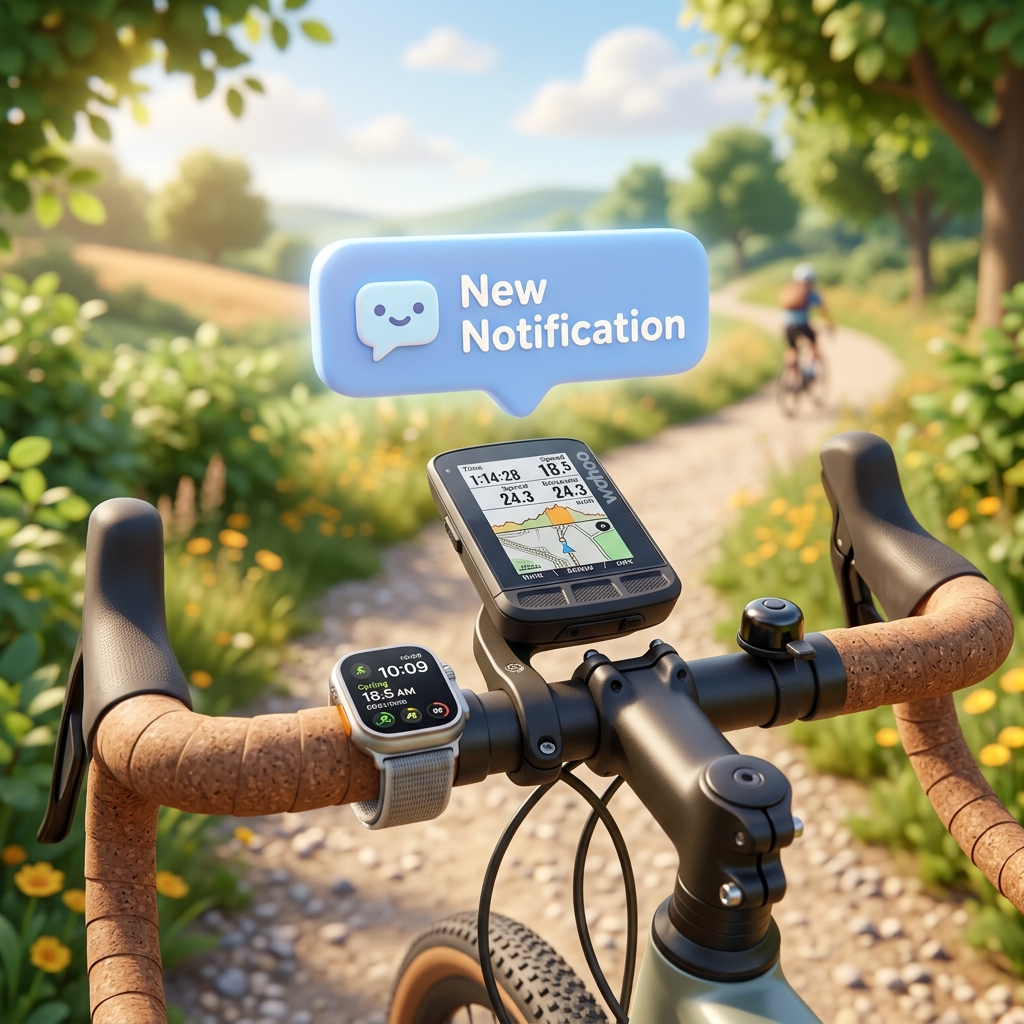
However, if there's one frustrating limitation when using Wahoo devices, it is notification integration. By design, Wahoo bike computers and sports watches only fetch native phone calls and standard SMS text messages via Bluetooth.
This means that push alerts from modern messaging apps we use daily—like WhatsApp, Telegram, Messenger, or Slack—never show up on the Wahoo screen. If an important message arrives while you are riding, you would have to pull your phone out of your jersey pocket to see it.
Fortunately, without any complex hacking or hardware mods, you can easily overcome this bottleneck using a clever utility app called SMS Forwarder. Let's dive into how you can convert KakaoTalk, WhatsApp, or any other app alerts into standard SMS in real time to display them on your Wahoo screen!
1. Real User Success Story
"Wahoo smartwatches and bike computers only support text and call alerts, but I solved it easily with this app. All the apps I want to receive notifications from are converted into SMS alerts, so I am receiving notifications on my Wahoo product perfectly." (Verified App User review)
As highlighted by this review, the SMS Forwarder app doesn't just forward texts to other devices. It also offers a feature called Notification-to-SMS conversion, which detects notifications from selected apps on your phone and automatically regenerates them as local text alerts (Self-SMS) on the same phone.
Since Wahoo devices are built to display standard text messages without missing a beat, once a WhatsApp or Telegram notification is converted into a local SMS, the Wahoo screen immediately displays the sender's name and message details.
2. How the Notification-to-SMS Conversion Works
On a smartphone, push notifications and SMS text messages are handled through different pipelines:
- App Notifications: App Server -> Push Notification Service -> Notification Bar (Unsupported by Wahoo)
- SMS Texts: Carrier Network -> Phone's Default Messaging App -> Active Inbox (Supported by Wahoo)
By using the Notification Listener filter in the SMS Forwarder app, the app detects any notification from your chosen apps (e.g., WhatsApp). It immediately captures the content and triggers a local SMS payload.
Your smartphone registers this incoming payload as a new text message. Consequently, your Bluetooth-connected Wahoo device treats it as a standard text alert and pops up the sender and message content right on your cycling computer or sports watch display.
3. Step-by-Step Setup Guide for Wahoo Devices
Setting this up takes less than a minute. Follow these simple steps:
Step 1: Install SMS Forwarder & Grant Permissions
- Search for and download the SMS Forwarder app on the Google Play Store.
- Open the app and grant the necessary permissions. In addition to SMS permissions, you must enable 'Notification Access' so the app can detect incoming push alerts from other messengers.
Step 2: Create a Notification Detection Filter
- Tap the + (Add) button on the bottom right of the main screen.
- Name your filter (e.g., "Wahoo WhatsApp Alert").
- Under the trigger event section, select 'When Notification Received'.
- Search for and check the apps you want to monitor, such as WhatsApp, Telegram, or Slack.
Step 3: Configure Self-SMS Dispatch
- Select 'Send SMS to Myself (Self-SMS)' or specify your own mobile number as the destination.
- Customize the message template to your preference. For example, setting it to
[{AppName}] {Sender}: {Content}makes it easy to quickly identify where the message came from when glancing at your handlebars. - Save the filter and toggle the activation switch at the top.
Step 4: Verify Wahoo Companion App Settings
- Open the Wahoo Companion app on your phone.
- Go to your paired device settings (Elemnt computer or Rival watch).
- Open the 'Notifications' menu.
- Ensure that 'Text Messages' or 'SMS Alerts' is toggled ON.
4. Optimization Tips for Cyclists and Runners
Once you have configured the basics, you can optimize the settings for an active workout environment:
- Exclude Unwanted Group Chats: If you receive too many group chat messages, your bike computer will buzz constantly, which can be distracting. Use SMS Forwarder's conditional filtering (include/exclude keywords) to convert only messages containing specific keywords or alerts from important contacts (e.g., "urgent", "family").
- Battery and Performance Optimization: The SMS Forwarder app is lightweight and optimized to run efficiently in the background without draining your battery during long rides. Make sure to add it to your phone's battery optimization exclusion list to prevent the OS from closing it.
- Cost-Free Configuration: By choosing the local loopback method or using an unlimited texting plan, this conversion does not incur additional carrier costs.
5. Conclusion
No more pulling over or risking safety to check your phone while riding! By using the smart notification-to-SMS features of the SMS Forwarder app, you can unlock the full potential of your Wahoo Elemnt bike computer or Rival watch.
Install the app today and enjoy a safer, smarter, and fully connected outdoor workout experience!
[!TIP] For more setup guides and advanced forwarding templates, check out our comprehensive SMS Auto Forwarding App Guide.
- Download on Google Play: Get SMS Forwarder for Free
Download SMS Forwarder
Download now and build your own auto-forwarding rules in a minute.
Install Free on Google Play